Acontext now includes comprehensive distributed tracing support through OpenTelemetry integration. This enables you to track requests as they flow through your entire system, from API endpoints through core services, database operations, and external service calls.

Overview

Distributed tracing provides end-to-end visibility into how requests are processed across multiple services. When a request comes in, Acontext automatically creates a trace that follows the request through:
  • acontext-api: HTTP API layer (Go service)
  • acontext-core: Core business logic (Python service)
  • Database operations: SQL queries and transactions
  • Cache operations: Redis interactions
  • Storage operations: S3 blob storage
  • Message queue: RabbitMQ message processing
  • LLM operations: Embedding and completion calls
Traces are automatically collected when OpenTelemetry is enabled in your deployment. The system uses Jaeger as the trace backend for storage and visualization.

How It Works

Acontext uses OpenTelemetry to instrument both the API and Core services:

Automatic Instrumentation

The following operations are automatically traced:
  • HTTP requests: All API endpoints are instrumented with request/response details
  • Database queries: SQL operations are traced with query details
  • Cache operations: Redis get/set operations
  • Storage operations: S3 upload/download operations
  • Message processing: Async message queue operations
  • LLM calls: Embedding and completion API calls

Cross-Service Tracing

When a request flows from acontext-api to acontext-core, the trace context is automatically propagated using OpenTelemetry’s trace context headers. This creates a unified trace showing the complete request flow across both services.
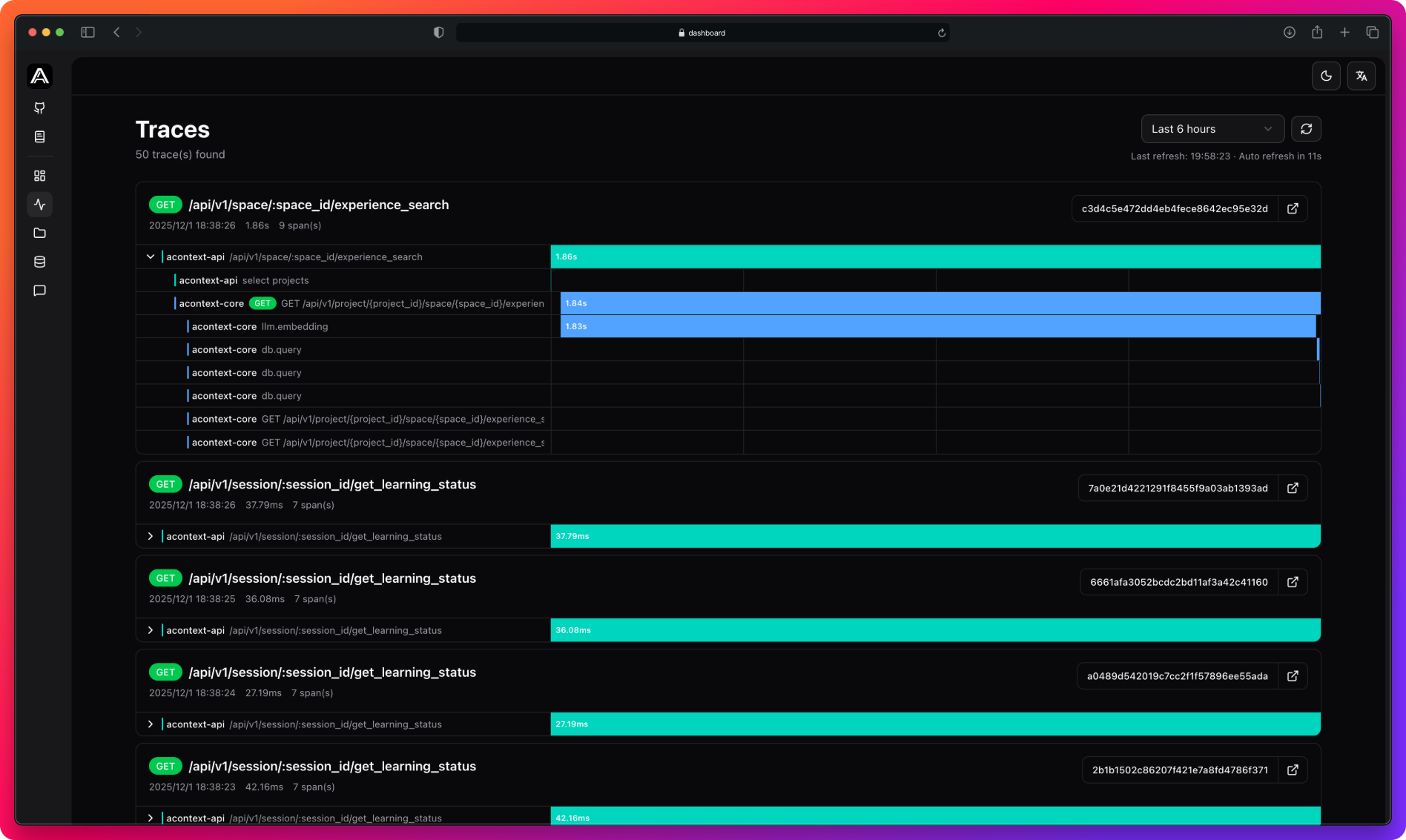
Traces viewer interface displaying traces with expandable spans, color-coded services, HTTP method badges, and duration visualization

Traces viewer showing distributed traces with hierarchical span visualization

Viewing Traces

Dashboard Traces Viewer

Access the traces viewer from the dashboard to see all traces in your system:
  • Time range filtering: Filter traces by time ranges (15 minutes, 1 hour, 6 hours, 24 hours, or 7 days)
  • Auto-refresh: Automatically refreshes every 30 seconds
  • Hierarchical visualization: Expand traces to view nested spans showing the complete request flow
  • Service identification: Color-coded spans distinguish between services (acontext-api in teal, acontext-core in blue)
  • HTTP method badges: Quickly identify request types
  • Duration visualization: Visual timeline bars show relative execution times
  • Trace ID: Copy trace IDs to correlate with logs and metrics
Click the external link icon next to a trace ID to open the detailed trace view in Jaeger UI for advanced analysis.

Jaeger UI

For advanced trace analysis, you can access Jaeger UI directly. The traces viewer provides a link to open each trace in Jaeger, where you can:
  • View detailed span attributes and tags
  • Analyze trace dependencies and service maps
  • Filter and search traces by various criteria
  • Compare trace performance over time

Configuration

Tracing is configured through environment variables. The following settings control tracing behavior:

Core Service (Python)

# Enable/disable tracing
TELEMETRY_ENABLED=true

# OTLP endpoint (Jaeger collector)
TELEMETRY_OTLP_ENDPOINT=http://localhost:4317

# Sampling ratio (0.0-1.0, default 1.0 = 100% sampling)
TELEMETRY_SAMPLE_RATIO=1.0

# Service name for tracing
TELEMETRY_SERVICE_NAME=acontext-core

API Service (Go)

telemetry:
  enabled: true
  otlp_endpoint: "localhost:4317"
  sample_ratio: 1.0
In production environments, consider using a sampling ratio less than 1.0 (e.g., 0.1 for 10% sampling) to reduce storage costs and overhead while still capturing representative traces.

Understanding Traces

Trace Structure

Each trace consists of:
  • Root span: The initial request entry point (usually an HTTP endpoint)
  • Child spans: Operations performed during request processing
  • Nested spans: Operations that are part of larger operations

Span Information

Each span contains:
  • Operation name: The operation being performed (e.g., GET /api/v1/session/:session_id/get_learning_status)
  • Service name: Which service performed the operation (acontext-api or acontext-core)
  • Duration: How long the operation took
  • Tags: Additional metadata (HTTP method, status codes, error information)
  • Timestamps: When the operation started and ended

Service Colors

In the traces viewer, spans are color-coded by service:
  • Teal: acontext-api operations
  • Blue: acontext-core operations
  • Gray: Other services or unknown operations

Use Cases

Identify slow operations and bottlenecks in your system by analyzing trace durations. Expand traces to see which specific operation is taking the most time.
# Traces automatically show up in the dashboard
# No code changes needed - just enable tracing in your configuration
  1. Open the traces viewer in the dashboard
  2. Filter by time range to focus on recent requests
  3. Look for traces with long durations
  4. Expand the trace to see which span is slow
  5. Check the operation name and service to identify the bottleneck
When an error occurs, use the trace ID to correlate logs and understand the full request flow that led to the error.
  1. Find the error in your logs and note the trace ID
  2. Search for the trace ID in the traces viewer
  3. Expand the trace to see the complete request flow
  4. Identify which service and operation failed
  5. Check span tags for error details
Understand how your services interact by analyzing trace flows. See which services call which other services and how frequently.
  1. View traces in Jaeger UI for advanced analysis
  2. Use Jaeger’s service map view to visualize dependencies
  3. Analyze trace patterns to understand service communication
Compare trace durations before and after optimizations to measure improvements.
  1. Note trace durations for specific operations before optimization
  2. Make your optimizations
  3. Compare new trace durations to verify improvements
  4. Use trace data to identify the next optimization target

Best Practices

Use sampling in production

Configure a sampling ratio (e.g., 0.1 for 10%) to reduce storage costs while maintaining observability.

Correlate with logs

Use trace IDs from traces to find related log entries and get complete context for debugging.

Monitor trace volume

Watch trace collection rates to ensure your sampling ratio is appropriate for your traffic volume.

Set up alerts

Configure alerts based on trace durations to catch performance regressions early.

Next Steps